

Reviewing Your Calls
Read the transcript, listen to the recording, and see the AI summary for any call your Call Center handled.
Every call your Call Center handles is saved so you can review it later. Open a call from your Contact Center inbox and you'll see its detail page — a plain-English summary of what happened, the full transcript, and the recording. Here's what everything on that page means.
The short version: Click any call in your Contact Center to open it. You get an AI summary of the call, the full transcript (searchable and timestamped), and the recording you can play back — plus who the caller was and what they wanted.
The call detail page
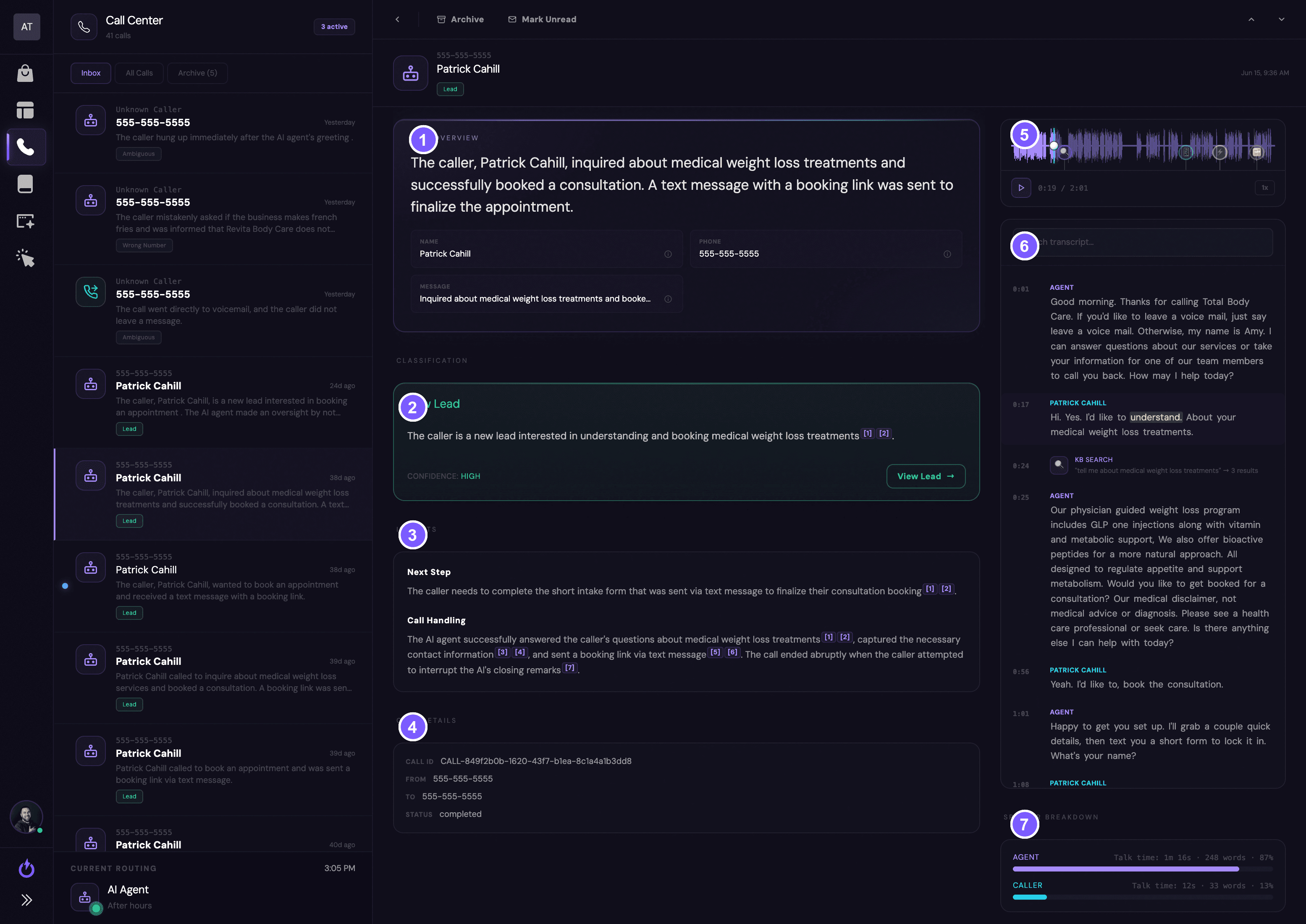
- AI summary (Overview) — a plain-English recap of the call: who called, what they wanted, and how it ended. The fields below it show the caller's captured details — name, phone, and a short message.
- Classification — how the call was categorized (for example, New Lead, Wrong Number, or Ambiguous), with a confidence level. If a lead was created, you can jump straight to it.
- Insights — the AI's read on the next step and how the call was
handled. The small
[1] [2]citations link to the exact transcript moments that back up each point. - Call details — the raw facts: the call ID, the numbers it came from and went to, and the call status.
- Recording — the audio you can play back, with a waveform timeline you can scrub. Markers on the timeline flag key moments (see below).
- Transcript — the full, word-for-word transcript, timestamped and searchable, with every line labeled Agent or Caller.
- Speaker breakdown — who talked how much: talk time, word count, and each side's share of the call.
The three things you'll use most
- The AI summary (1) answers "what was this call about?" at a glance — no need to listen to the whole thing.
- The transcript (6) is the exact word-for-word record. Use the search box to jump to a word or phrase, and click a timestamp to hear that moment.
- The recording (5) is the audio itself — play it back, scrub the waveform, and speed it up or slow it down.
See what the AI looked up
Your recording's timeline has markers for moments where the AI used a tool during the call — like searching your knowledge base to answer a question. Hover a marker to see exactly what it did: the question it asked and the answers it found, each with a match score.
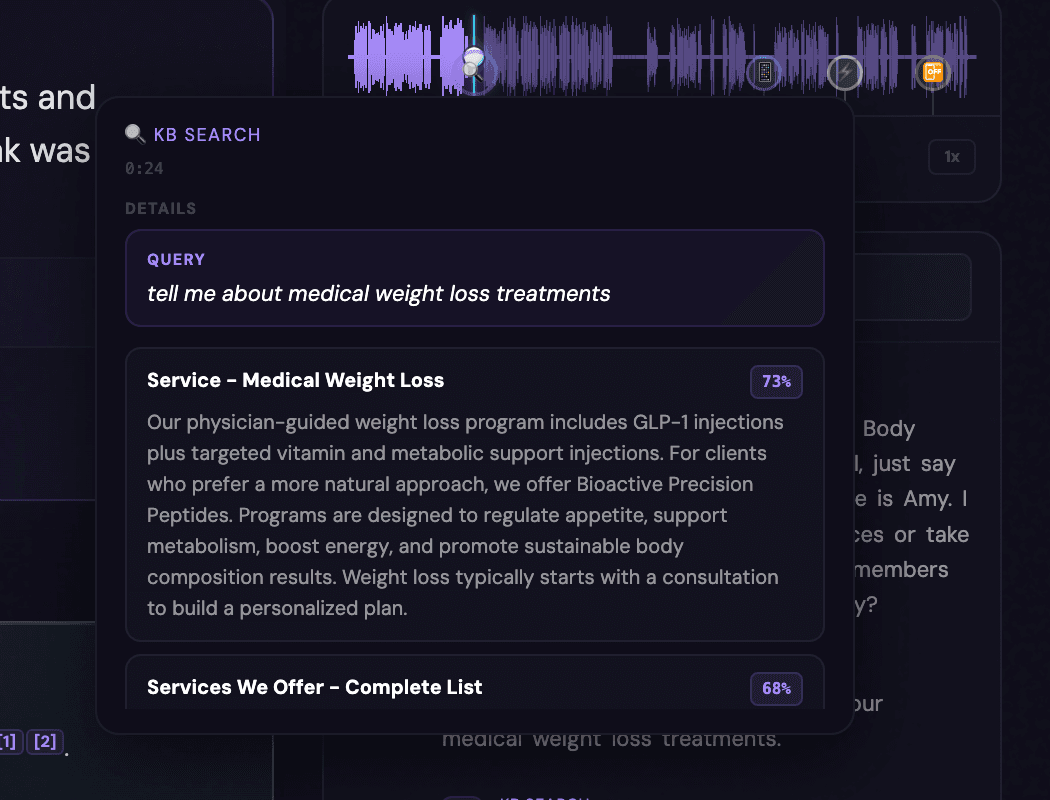
This is a great way to see why the AI said what it said, and to spot gaps — if the AI searched for something and found weak matches, that's a sign to add or sharpen a knowledge base entry.
Finding and managing calls
Your Contact Center opens on the Inbox. Use the tabs to switch between Inbox, All Calls, and Archive, and from a call you can Archive it or Mark unread to deal with it later.
The AI Knowledge Base
How your AI answers caller questions — and how to shape what it looks up.
Viewing Your Current Call Routing
See what happens to a call right now, and why.
Still stuck?
Have a question about a specific call, or want help reading your transcripts? Reach out — we're happy to walk through it with you.