

Google Ads Not Running Due to a Payment Issue
If your ads stopped with a "payment declined" or overdue balance message, here's how to check and fix your Google Ads payment method.
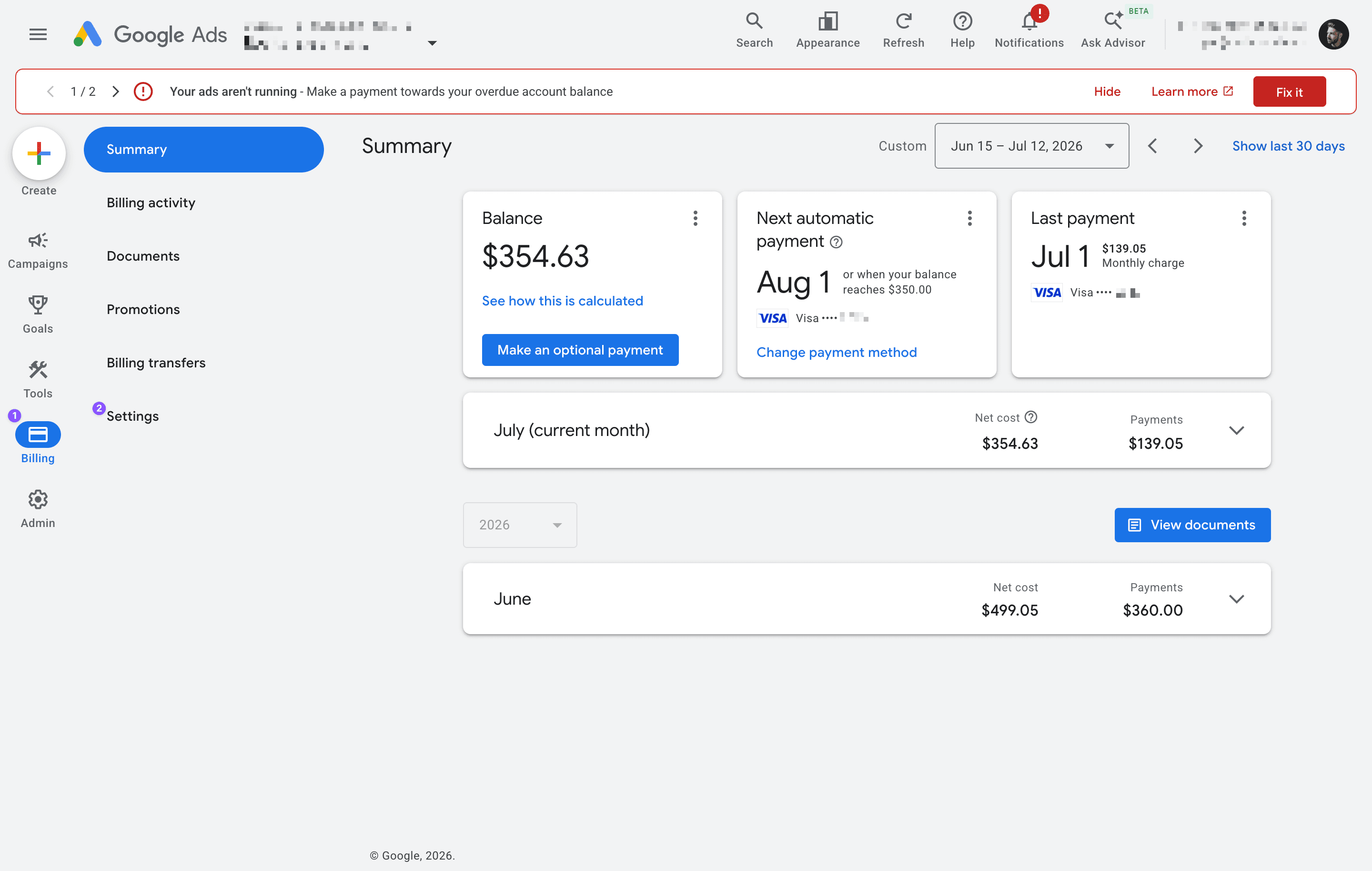
If your Google Ads stopped running and you see a message like "Your ads aren't running — Make a payment towards your overdue account balance," or "Payment declined," your account paused because Google couldn't charge your payment method. Here's how to check it and get your ads back on.
Heads up: Billing runs through your Google Ads account and payment method. Google requires the account owner to handle payment, so we can't update your card for you — we'll flag the issue, but you (or your billing admin) need to resolve it on your side.
Step 1 — Log in to Google Ads
Sign in at ads.google.com with the Google account that owns — or manages billing on — your ad account.
Step 2 — Open your billing settings
In the left menu, click Billing (1), then Settings (2).
Step 3 — Find the payment problem
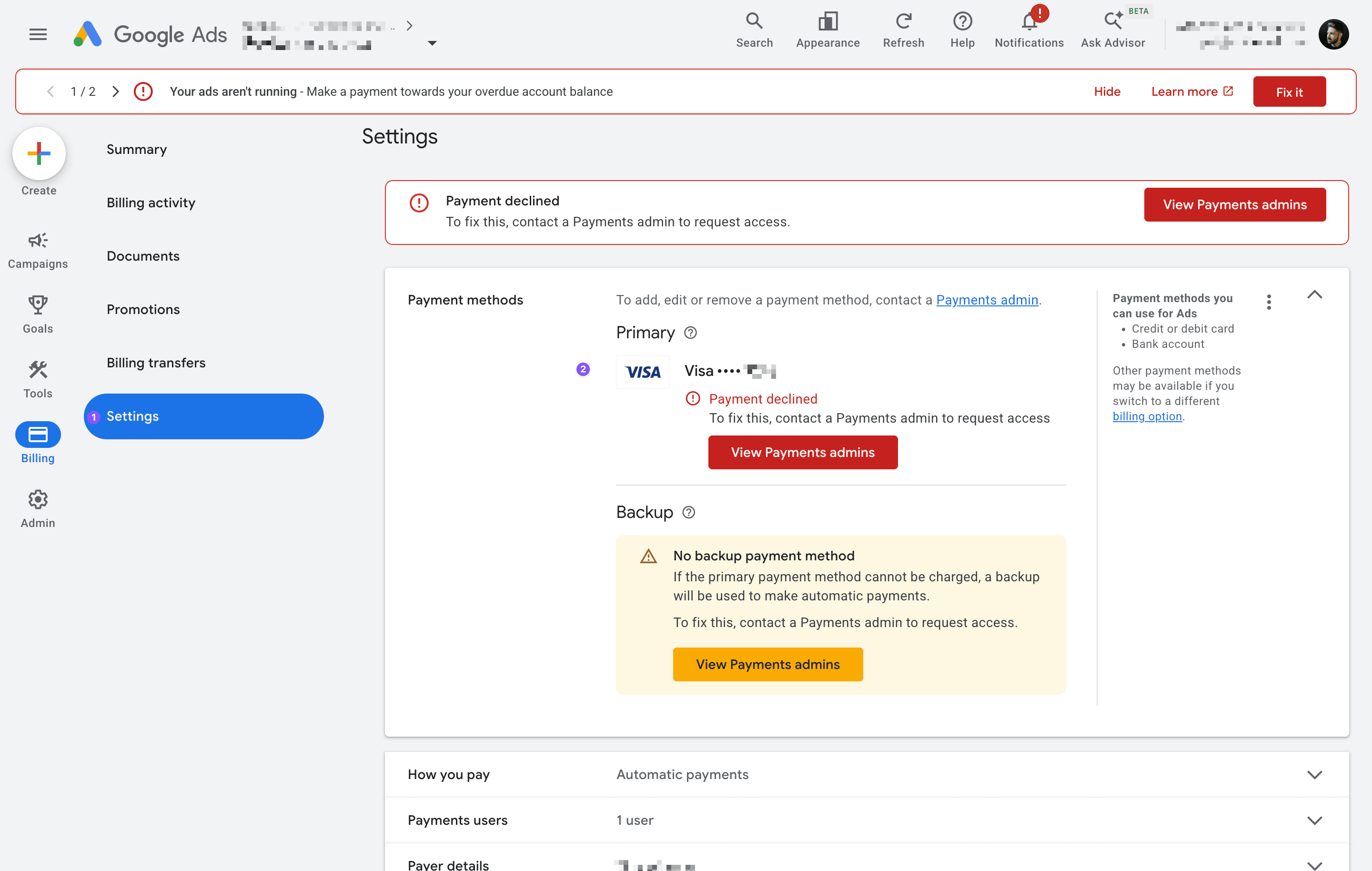
On the Settings page, look at your Primary payment method (2). If it says "Payment declined," that's why your ads stopped — Google tried to charge the card and it didn't go through (often an expired card, insufficient funds, or the bank blocking the charge).
Step 4 — You'll need the right role to fix it
Here's the catch: only a Payments admin can add, edit, or remove a payment method. If you see "To fix this, contact a Payments admin to request access," your login doesn't have billing permission. You'll need to either:
- Log in as a Payments admin — usually the account owner, or whoever set up billing — or
- Click "View Payments admins" to see who has that access, and ask them to update the payment.
Once someone with the right role is in, the fix is usually one of:
- Make a payment on the overdue balance (the red Fix it button, or Make a payment), and/or
- Update the declined card, or add a new payment method.
Add a backup payment method, too. If your account shows "No backup payment method," a single declined card takes your ads offline. A backup keeps them running if the primary ever fails.
Once it's resolved
After the balance is paid and a valid payment method is in place, Google usually resumes your ads within a few hours. Let us know once it's sorted and we'll confirm everything is running again, and pick your campaigns back up where they left off.
Still stuck?
Not sure who your Payments admin is, or seeing a different billing error? Send us a screenshot (with any card numbers hidden) and we'll help you figure out the next step.