

How to Log In to Your Account
Sign in to Outbound.com with Google or your email and password.
Your Outbound.com account lives at app.outbound.com. Go there and you'll land on the login screen:
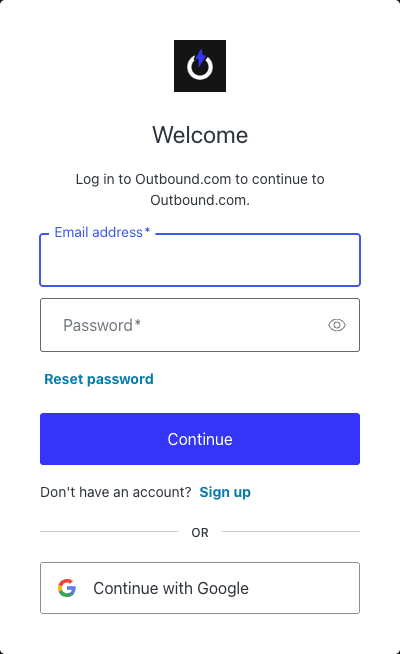
There are two ways in — use whichever method you signed up with:
Click Continue with Google at the bottom of the login screen, then choose the Google account you used when you signed up.
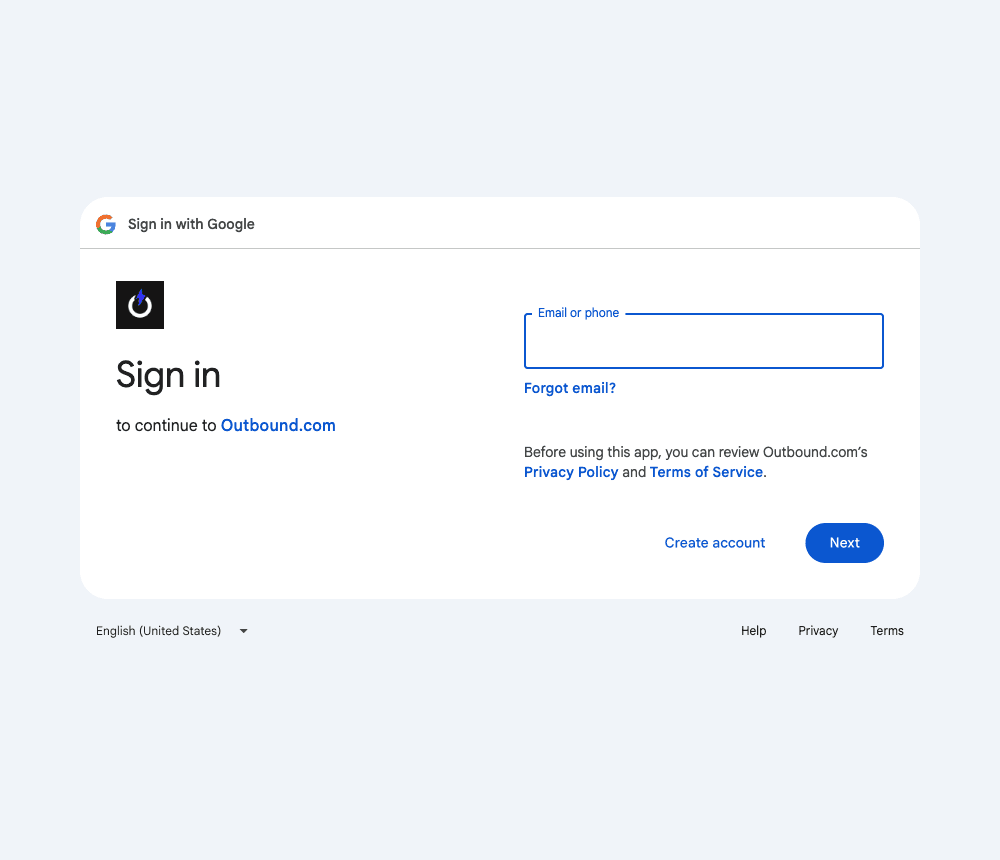
No password to remember — Google confirms it's you and sends you straight in.
Enter your email address and password, then click Continue.
Tip: a password manager like 1Password can save your Outbound.com login the first time you enter it and fill it automatically after that — no more reset-password loops.
Signed up with Google but trying to type a password (or the other way around)? That's the most common reason a login fails. Stick with the method you originally signed up with.
Forgot your password?
Click Reset password on the login screen, enter your email address, and click Continue. We'll email you instructions to set a new one.
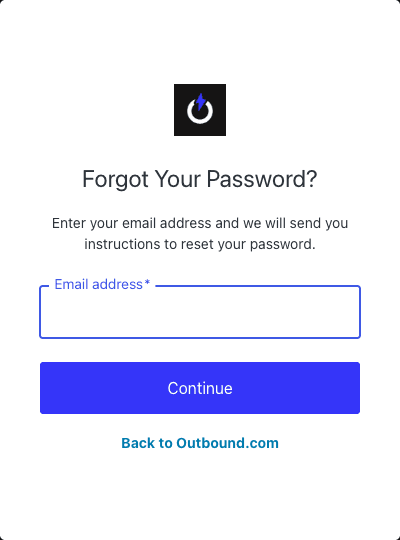
The reset email comes from Outbound.com and usually arrives within a couple of minutes — check your spam folder if you don't see it. If you signed up with Google, there's no password to reset; just use Continue with Google.
Still stuck?
Still can't get in? Tell us the email address on your account and we'll get you sorted.