

Google Business Profile
Grant Outbound.com manager access to your Google Business Profile in five quick steps.
To manage your local presence, Outbound.com needs Manager access to your Google Business Profile. The whole process takes about two minutes.
Before you start: sign in to the Google account that owns your Business Profile. If someone else at your business set it up, they'll need to do these steps (or make you an Owner first). Not sure which account it is? It's the one that receives review notifications from Google.
Open your Business Profile
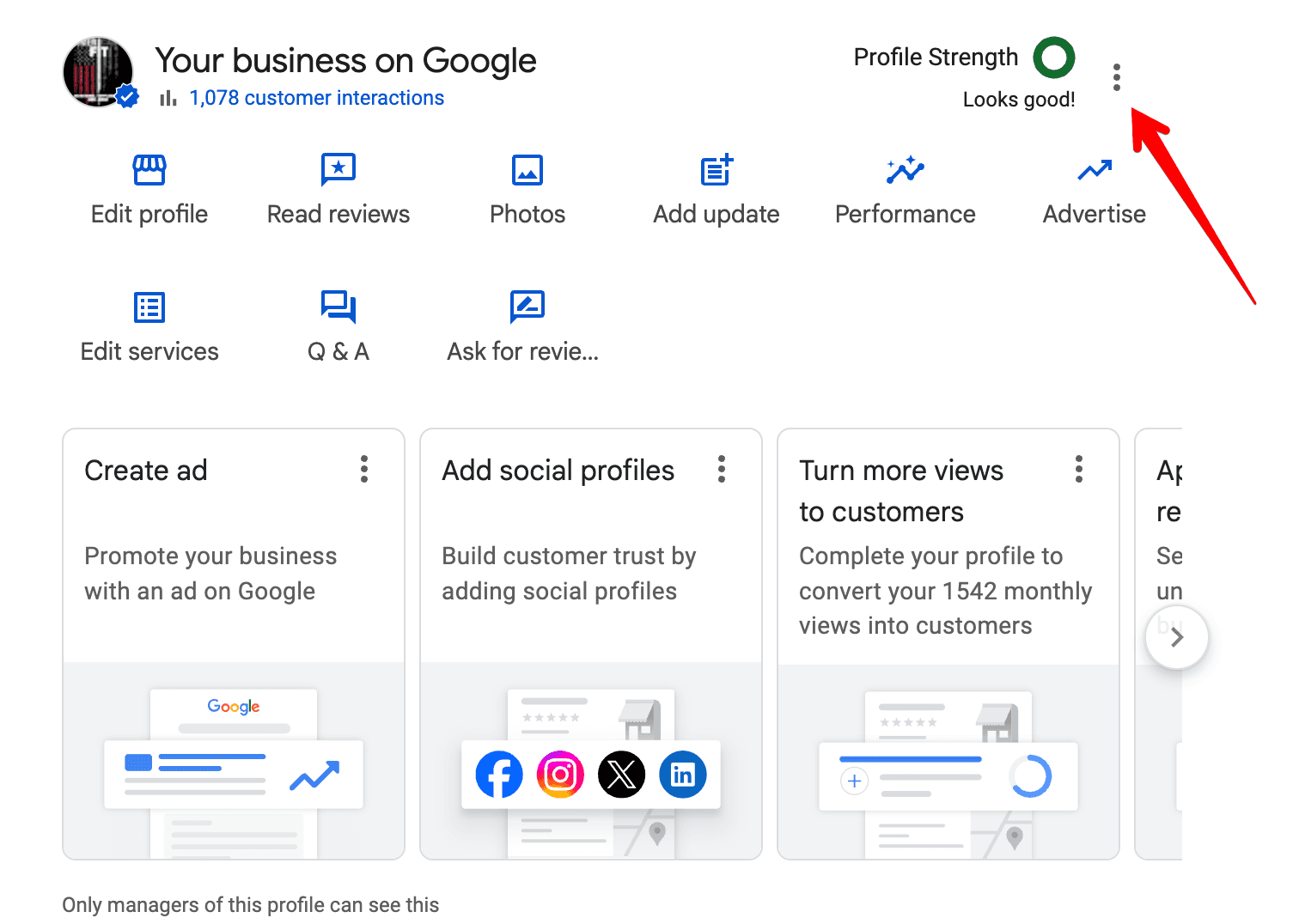
Google manages Business Profiles right inside Google Search, so there are two ways to get to yours — both end up in the same place:
Go to business.google.com while signed in.
- One location: you'll land on your business panel directly.
- Multiple locations: you'll see a list — click the location you want to connect, then repeat these steps for each additional location.
Search Google for "Google Business Profile" (or your own business name) while signed in — your business appears in a panel at the top of the results.
If you don't see your business at either place, you're probably signed in with the wrong Google account. Check the account avatar in the top-right corner and switch to the one that manages your business.
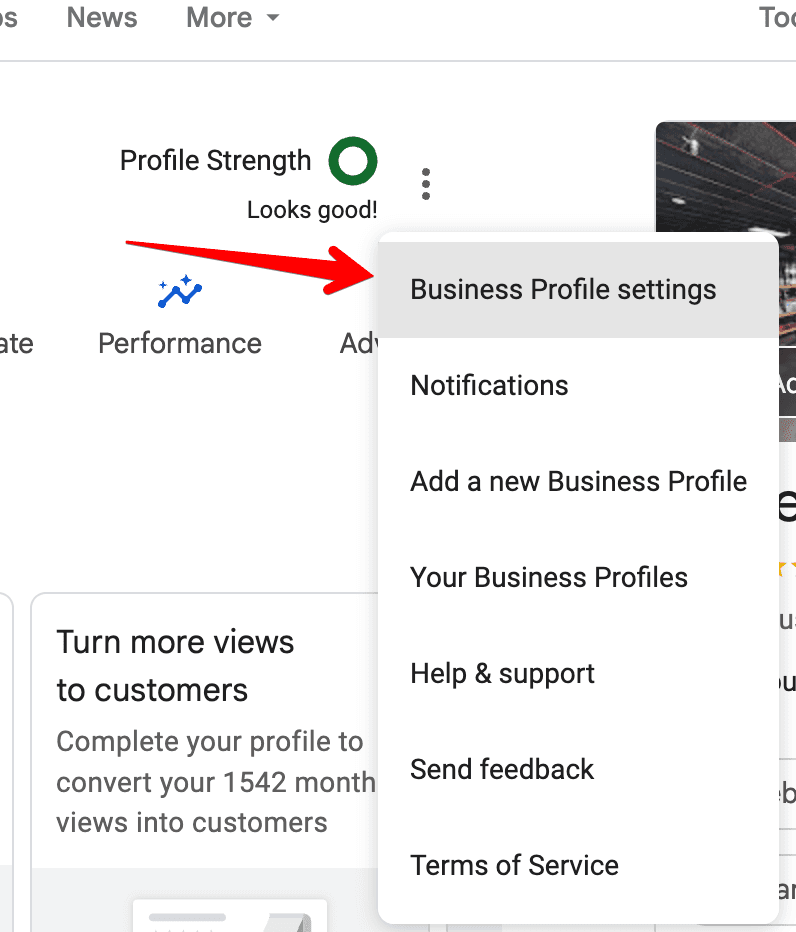
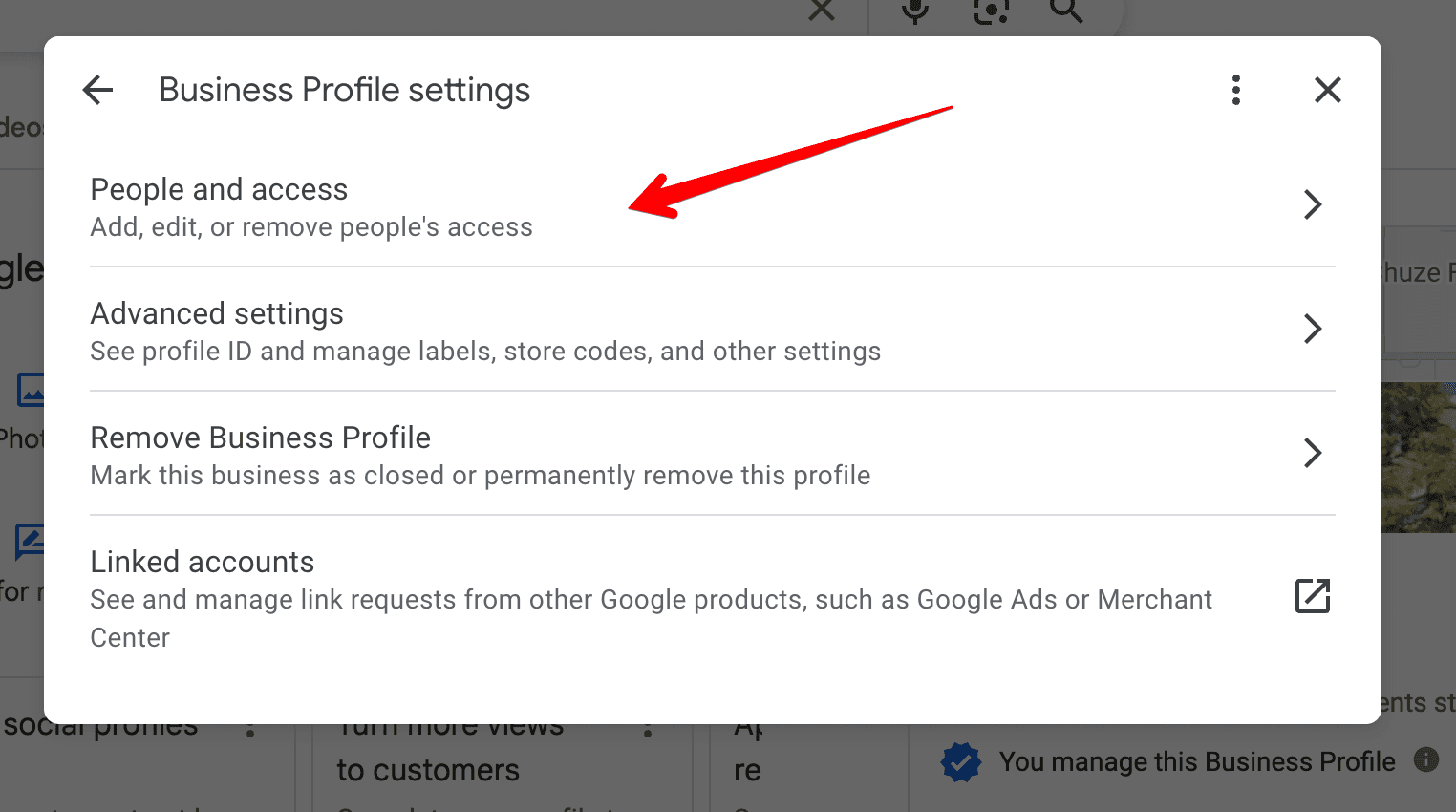

Invite Outbound.com as a Manager
Enter our email, choose Manager, and click the blue Invite button.
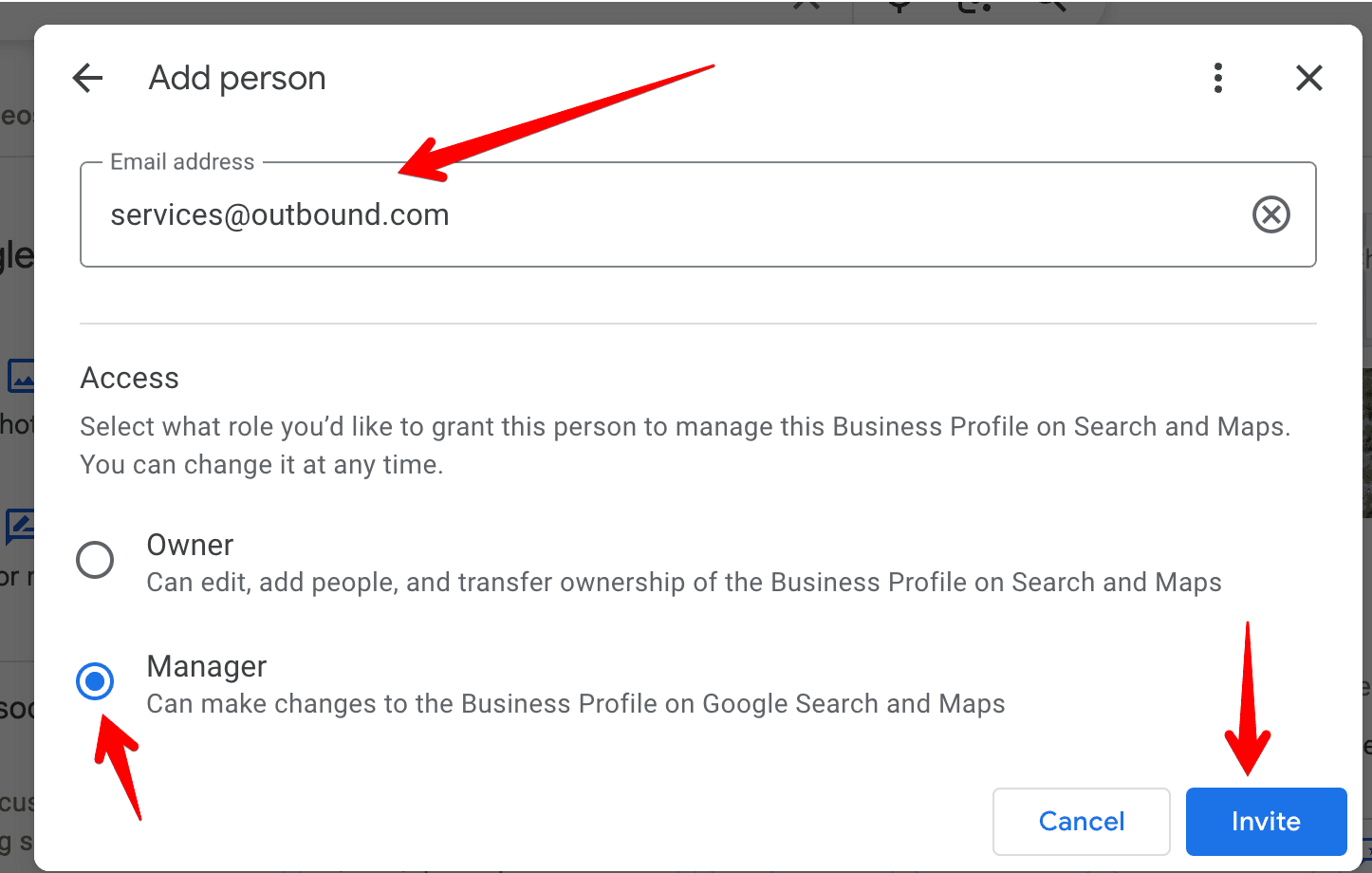
Manager, not Owner. The Manager role lets Outbound.com update your profile and respond on your behalf — it can't transfer ownership or remove you. You stay in control and can change access at any time.
What happens next
We accept the invitation, usually within one business day. Once connected, your profile updates — hours, photos, posts, and review responses — are handled for you, and results start showing up in your reports.
Still stuck?
Hit a snag — maybe the menu looks different, or you don't see your business panel? Send us a screenshot and we'll get you connected.
Boosting a Post vs. Running Ads
Why we run real campaigns through a full ad account instead of using the "Boost post" button — and what the difference means for your results.
Give Outbound Access to Google Search Console
What Google Search Console is, what it's used for, and how to add Outbound so we can strengthen your presence in Google Search.